Modules
A Module is your project in Alkemion Studio: a self-contained piece of content that brings together a visual Board, a rich-text Editor, and all the tools you need to design and organize your ideas in one place.
What a Module represents is entirely up to you. There is no required structure. A Module could be a one-shot adventure, a sprawling campaign setting, a session journal, a faction deep-dive, a collection of random tables, or something else entirely. The tool shapes itself around how you think, not the other way around.
What a Module Can Be
Because Modules carry no fixed meaning, they adapt naturally to any creative workflow. A Module works well on its own, and it can also be part of a larger structure when your project grows. Here are a few common ways people use them.
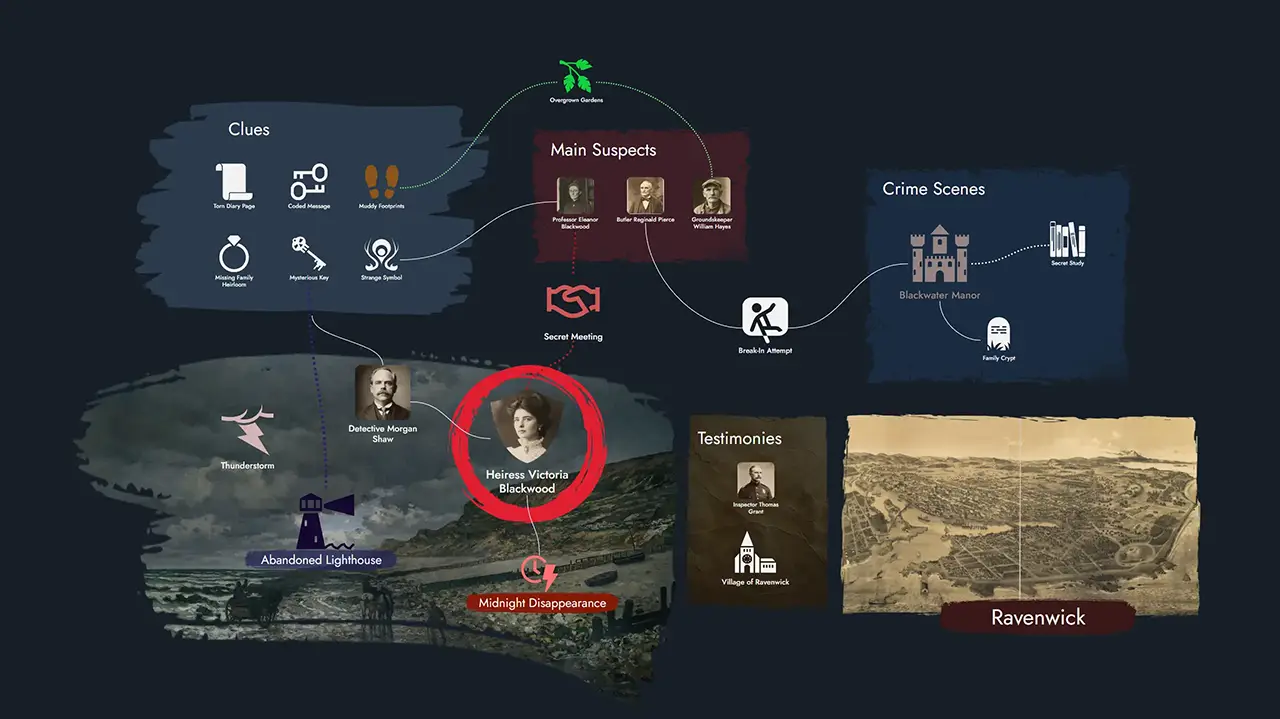
A single adventure. Map out locations, NPCs, clues, and plot hooks as Nodes on the Board. Connect them with Links to sketch the possible paths players can take. Write the full content in the Editor when you are ready. One Module, one adventure, ready to run.
Part of a campaign. As your campaign grows across multiple adventures, each Module can represent one chapter or arc. Group them all under a Module Collection to keep them connected: search across every Module at once, share a common Library of assets, and navigate between them without returning to the Lobby.
A worldbuilding hub. Dedicate a Module to a region, a faction, or a historical period. Keep it focused. Then bring all your world Modules together in a collection, with a parent Module serving as the lore hub that ties everything together.
Solo roleplaying. Use one Module per session journal, tracking discoveries and events as Nodes. Group them in a collection alongside a character Module and a world lore Module. Random Tables can spark unexpected directions when inspiration runs dry.
Loose prep material. Not every Module needs to be a full adventure. A Module can hold a single dungeon, a set of tavern NPCs, or a batch of rumours you want to keep handy. Add it to a collection whenever it finds its place in a larger project, or save it as a Template to reuse it across future ones.
What's Inside a Module
Every Module contains the same set of tools, ready to use as much or as little as you need.
- The Board -- an infinite visual canvas where you place and connect your content using Tokens and Links.
- The Editor -- a rich-text writing space that organizes your Nodes into printable, exportable Pages.
- Nodes -- the content-bearing elements of your Module: locations, NPCs, clues, events, and more.
- Tags -- customizable labels for organizing and filtering your Nodes.
- Widgets and Anchors -- visual elements and navigation shortcuts for structuring your Board.
- Random Tables -- rollable tables you can link to Nodes for on-the-fly generation.
A Module also has its own scratchpad for module-wide notes, a featured image, and a description. Its Module Settings hold its own preferences, and can give it its own interface theme. You can export it, share it as a read-only link, or save it as a Template for future reuse.
Creating and Managing Modules
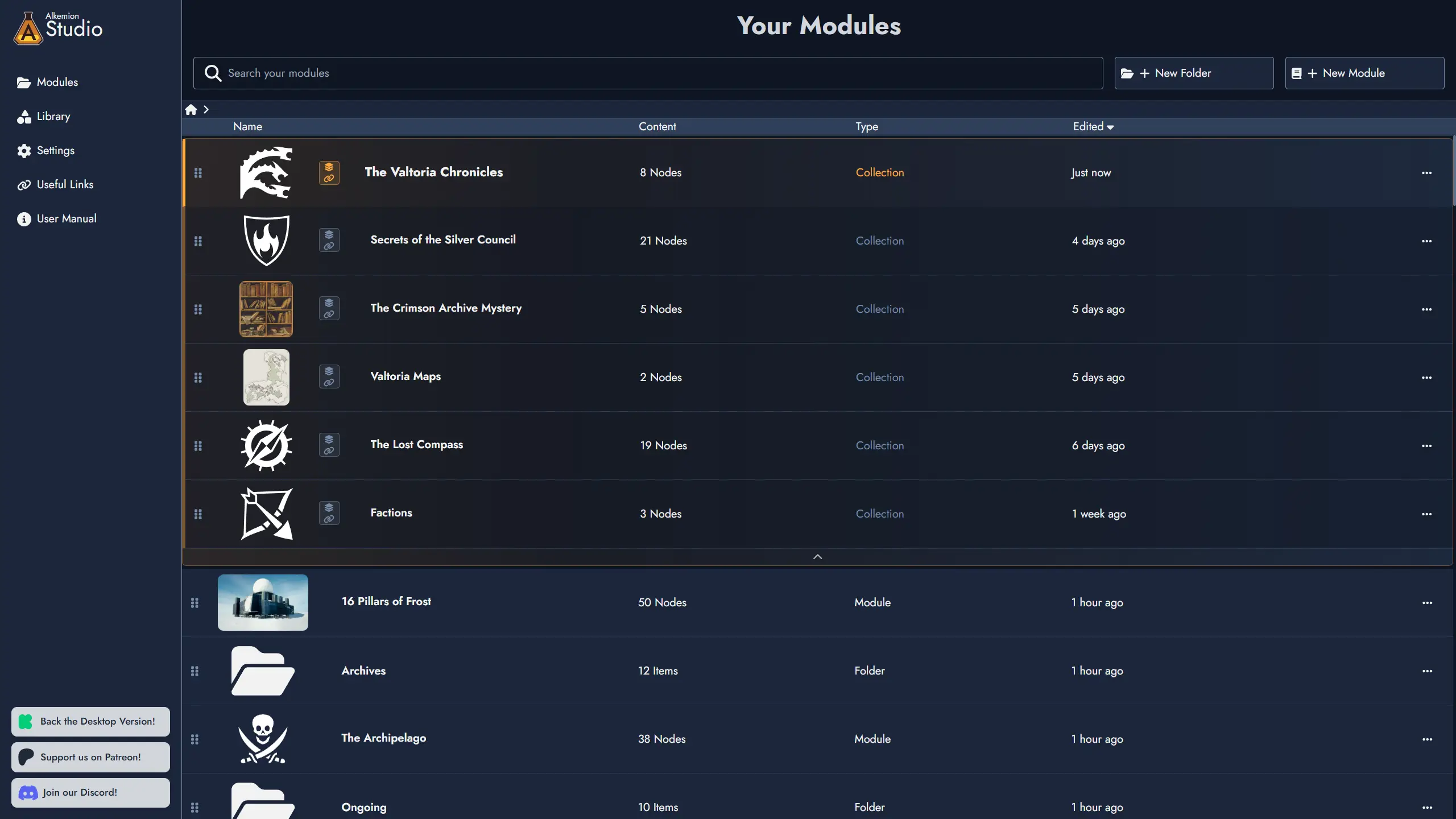
Modules are created and managed from the Lobby. Click + New Module to start from a blank Board or from a Template. You can rename, duplicate, or delete any Module from its action menu in the Lobby.
Folders let you group Modules however you like. Create as many subfolders as you need and move Modules between them freely, either through the context menu or by dragging a Module card directly onto a folder.
Module Collections
When your work spans several Modules, a Module Collection lets you bring them together. Any Module can become a collection: promote it through its context menu in the Lobby, and it becomes a parent container for as many child Modules as you need.
What the collection means is, again, up to you. A campaign hub with one Module per adventure. A world with separate Modules for factions, regions, and history. A solo project grouping session journals, a character sheet, and world lore. The system defines none of it.
Promoting a Module changes nothing about its existing content. You can turn it back into a regular Module at any time if you change your mind.
Collections in the Lobby
In the Lobby, a Module Collection card expands and collapses inline to show its child Modules nested beneath it. Click the expand/collapse control to show or hide the children. Click the card itself to open the collection's Board.
Add Modules to a collection through its context menu, or by dragging any Module card directly onto the collection. Remove a Module from a collection at any time. Its content is never affected.
The collection's own Board is a blank canvas, available for any purpose you choose. Some users build a visual overview of their campaign there, using Anchor Tokens to represent child Modules and connecting them with Links to show narrative or thematic relationships. Others leave it empty and use it purely as an organizational container.
Shared Library
When you are working inside any Module that belongs to a collection, the Library panel shows a toggle switch labeled with the collection's name. Switching to it displays only the assets curated for that collection: Templates, Tag Collections, Images, Icons, Masks, and Random Tables.
This is a convenience feature for large projects. Instead of searching your full Library, you curate the assets relevant to this campaign or world once, and they are always easy to find from any Module in the collection.
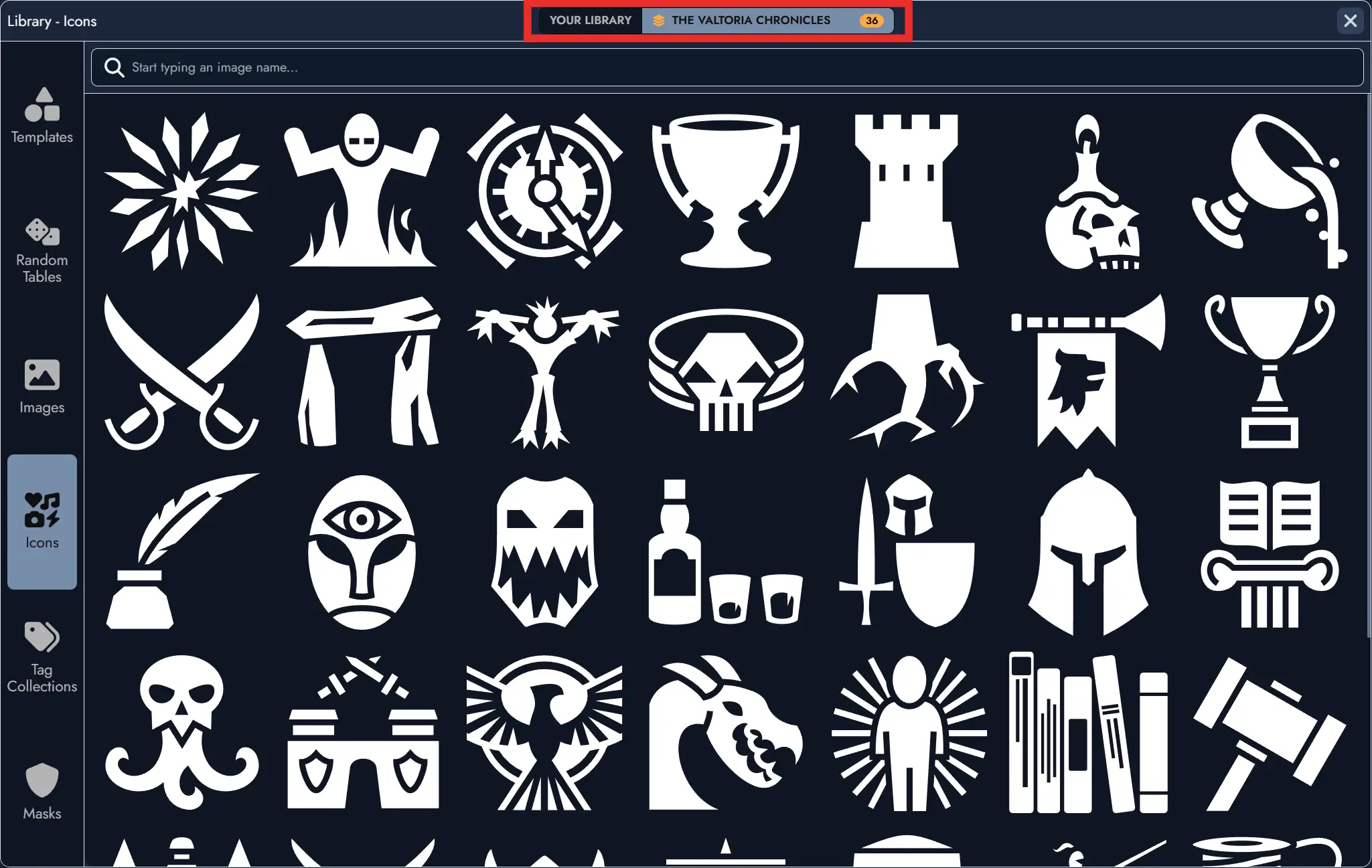
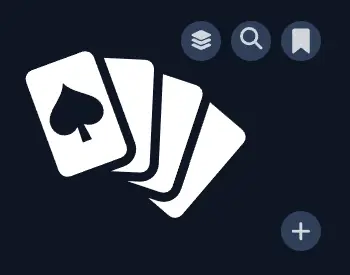
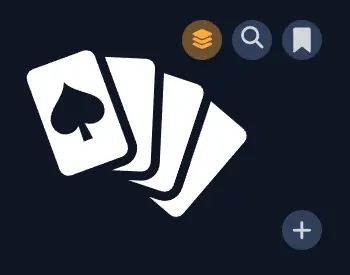
To curate an asset, open the Library from inside any Module in the collection and use the Curate for collection toggle on any asset. Curated assets are never imported automatically; they are simply easier to find when you need them.
Cross-Module Search
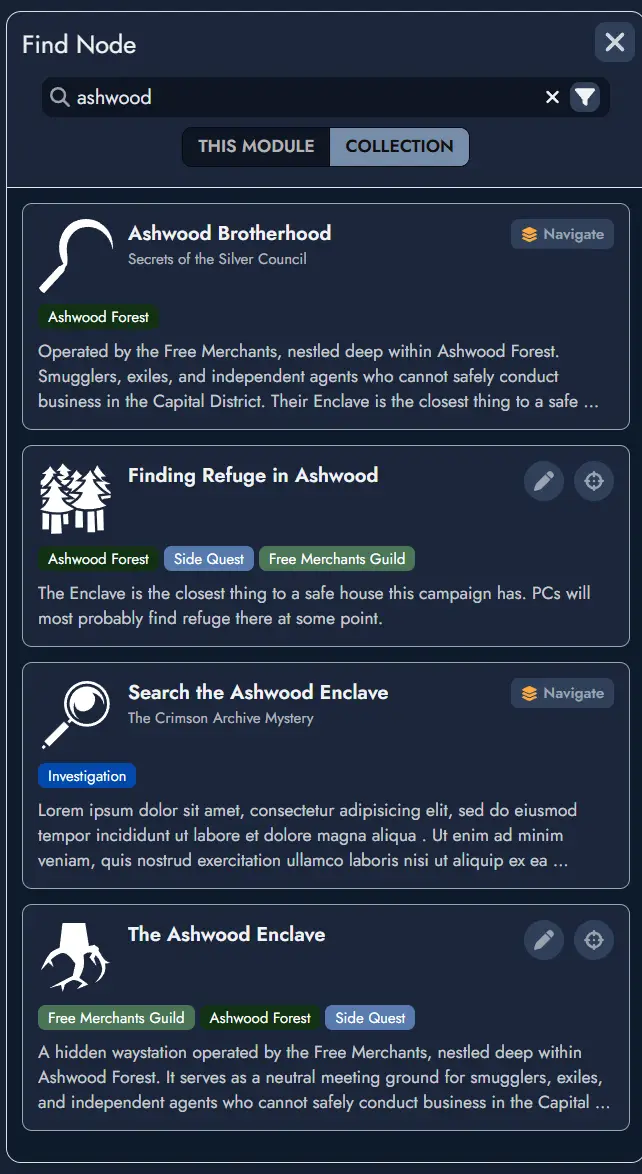
Inside any Module that belongs to a collection, the search window includes a scope toggle. Switch to All modules in collection to search across every Module in the collection at once.
Results show the Node name, type, Tags, a content preview, and the source Module name. From any result, you can navigate directly to that Node in its source Module, or add it as a copy to your current Module.
This is particularly useful during campaign play, when you remember that an NPC or location was defined somewhere in the collection but cannot recall exactly which Module.
Quick Navigation
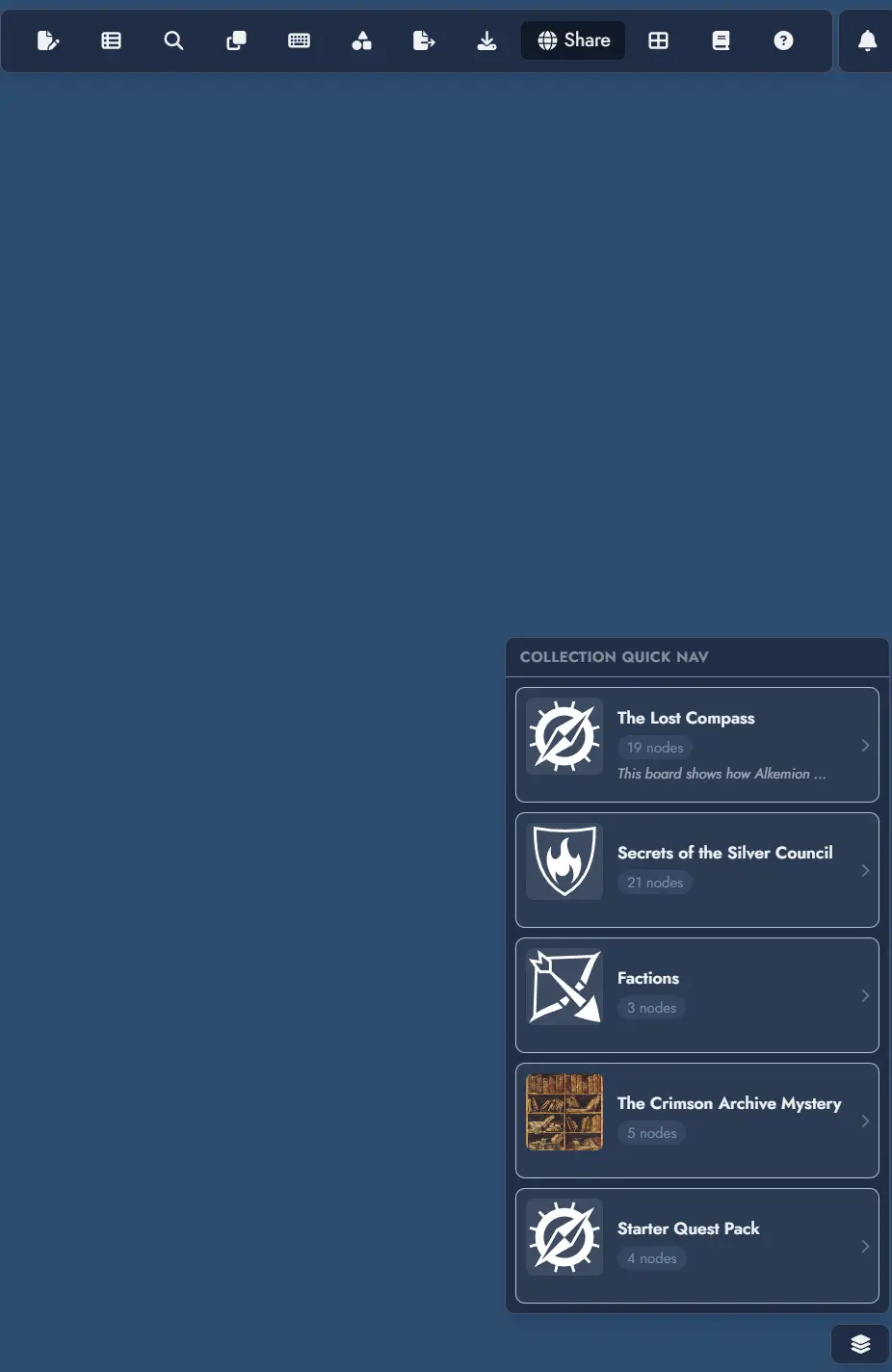
When inside a Module that belongs to a collection, a quick navigation button appears at the bottom right of the Board. It opens a menu listing all Modules in the collection. Selecting one takes you there immediately, without going back through the Lobby.