
Anchors
Anchors are Assets that act as navigational links on the Board. They come in two types: Module Anchors, which link to another Module, and External Link Anchors, which link to an external URL.
Like Nodes, Anchors can have multiple independently styled Tokens on the Board. Activating an Anchor Token opens the linked destination. Anchors can also be connected to other Assets using Links.
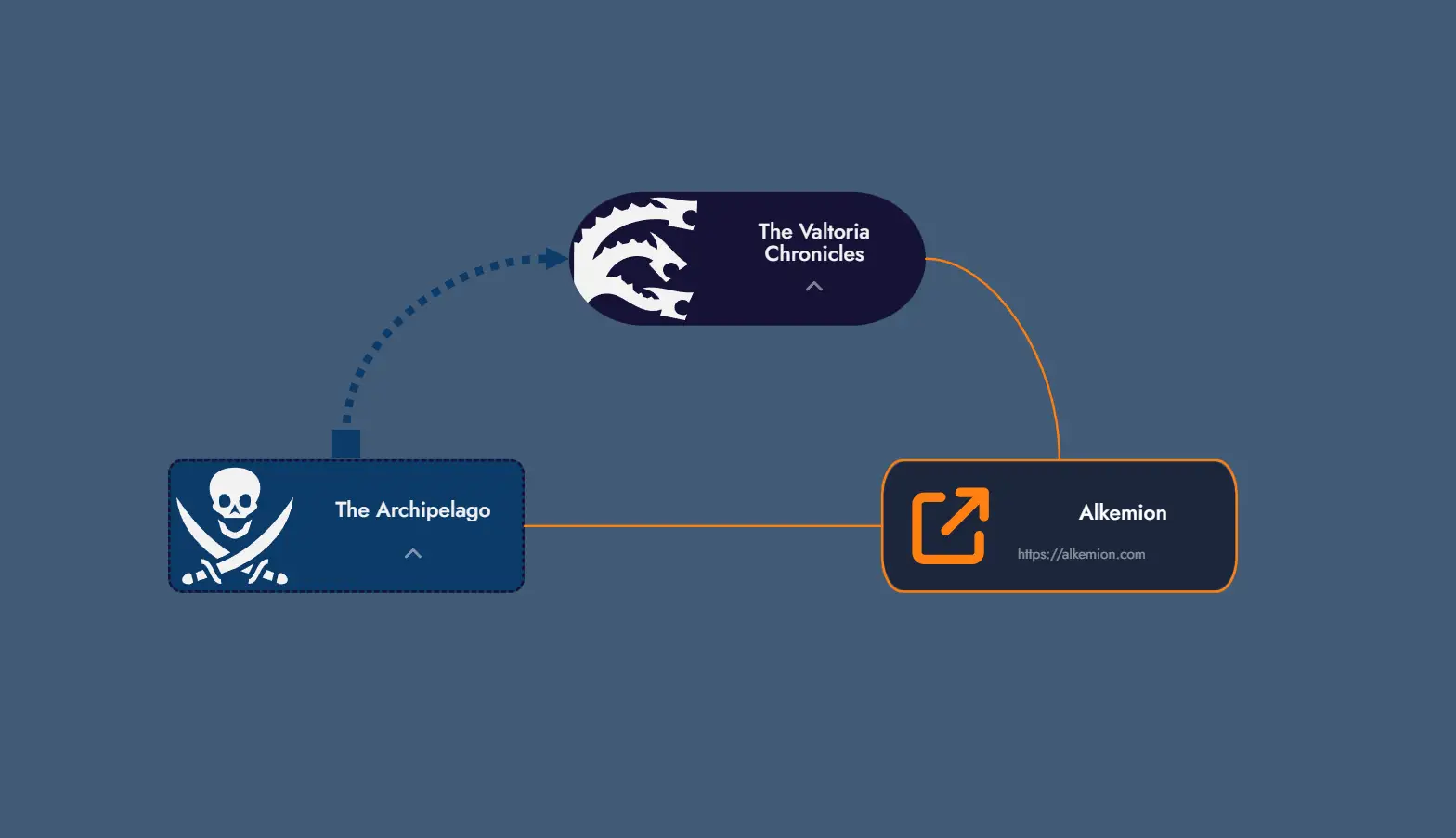
Module Anchors
A Module Anchor links to another Module in your account. Double-clicking a Module Anchor Token, or using the Travel to Module option in its context menu, navigates directly to the linked Module's Board.
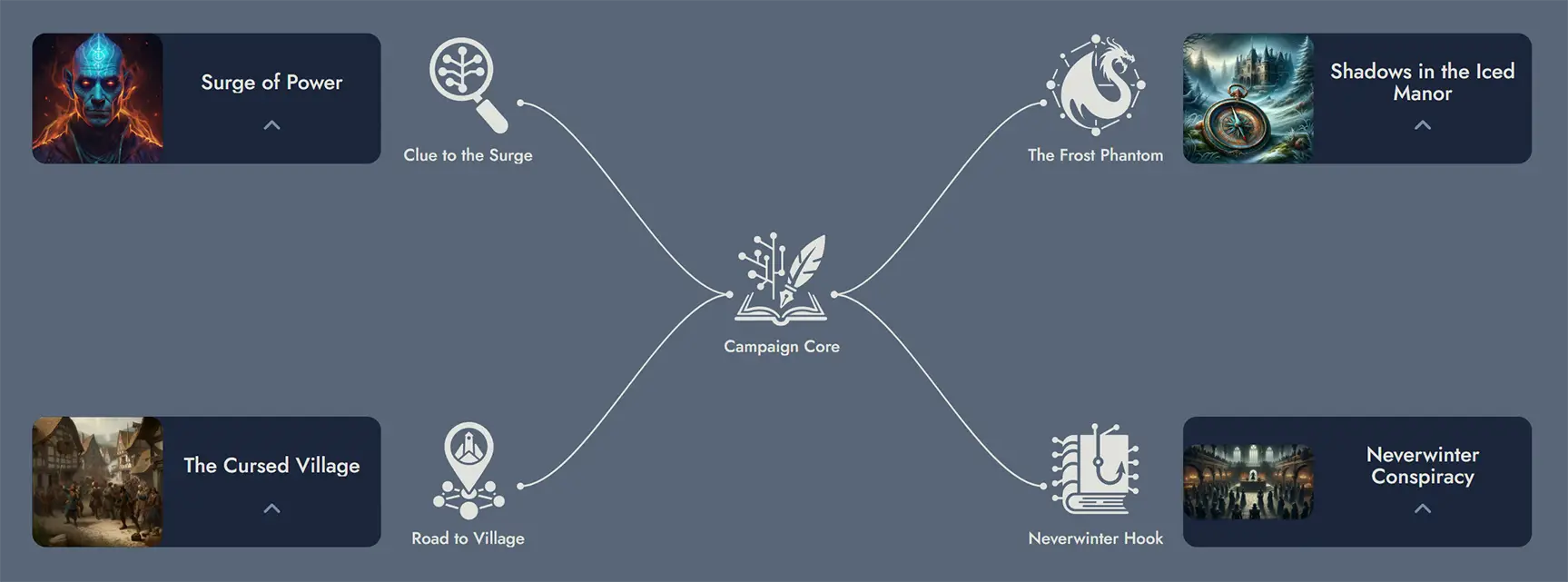
Module Anchors are particularly useful for building campaign hubs: a central Module that connects to individual adventure Modules, letting you jump between them with a single click.
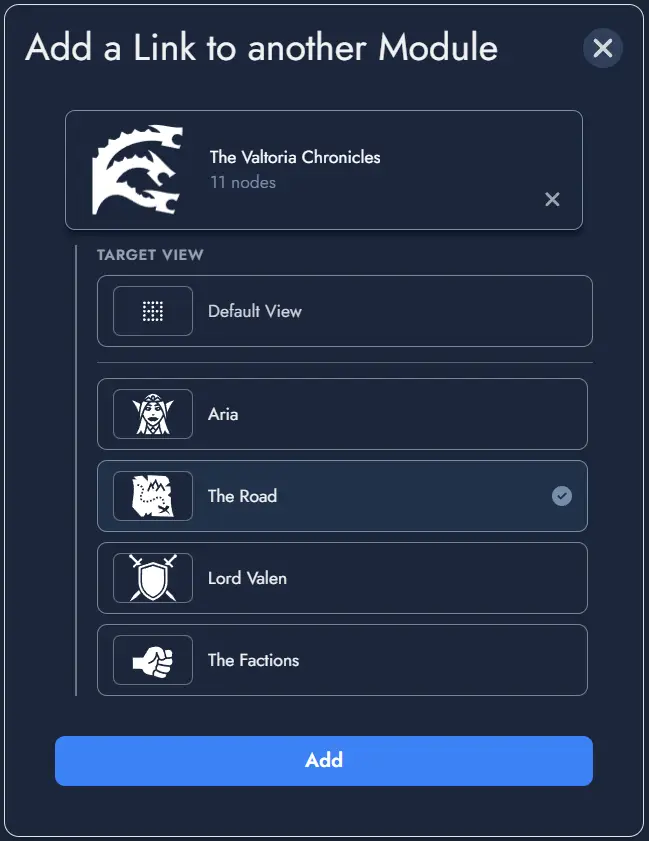
Targeting a View within a Module
When configuring a Module Anchor, you can optionally target a specific View within the destination Module, rather than just the Module itself. When the Anchor is activated, it navigates to the Module and immediately zooms to the targeted View using the standard fit-to-screen behavior.
In the target selection modal, Modules that have Views defined immediately list their available Views as selectable targets. The selected target is displayed in the Anchor settings as Module Name > View Name.
If the targeted View is later deleted from the destination Module, the Anchor falls back gracefully to navigating to the Module without any View-specific zoom. The Anchor itself is not broken.
External Link Anchors
An External Link Anchor stores a URL instead of a Module reference. Double-clicking its Token opens the linked URL in a new browser tab. The same action is available from the Token's context menu.
Use External Link Anchors to reference rulebooks, maps, reference sheets, or any online resource relevant to your Module.
Anchor Tokens
A single Anchor can have any number of Tokens on the Board. Each Token is an independent visual instance of the same Anchor and can be customized separately. Deleting a Token does not delete the parent Anchor.
The following customization options are available per Anchor Token:
- Featured image or icon
- Font color and background color
- Border style and border color
- Corner width and corner height (independent controls)
You can set a featured image or icon on any Anchor Token. The custom image replaces the default one displayed on the Token. Removing it restores the default automatically.
Anchor Tokens have their own Token Settings window, accessible from the context menu. The settings available differ slightly between Module Anchors and External Link Anchors.
Context Menu Actions
Right-clicking an Anchor Token opens a context menu with the following actions specific to Anchors:
- Travel to Module (Module Anchors only): navigates immediately to the linked Module's Board.
- Open Link (External Link Anchors only): opens the stored URL in a new tab.
- Delete Token: removes this Token from the Board without deleting the Anchor itself.