Random Tables
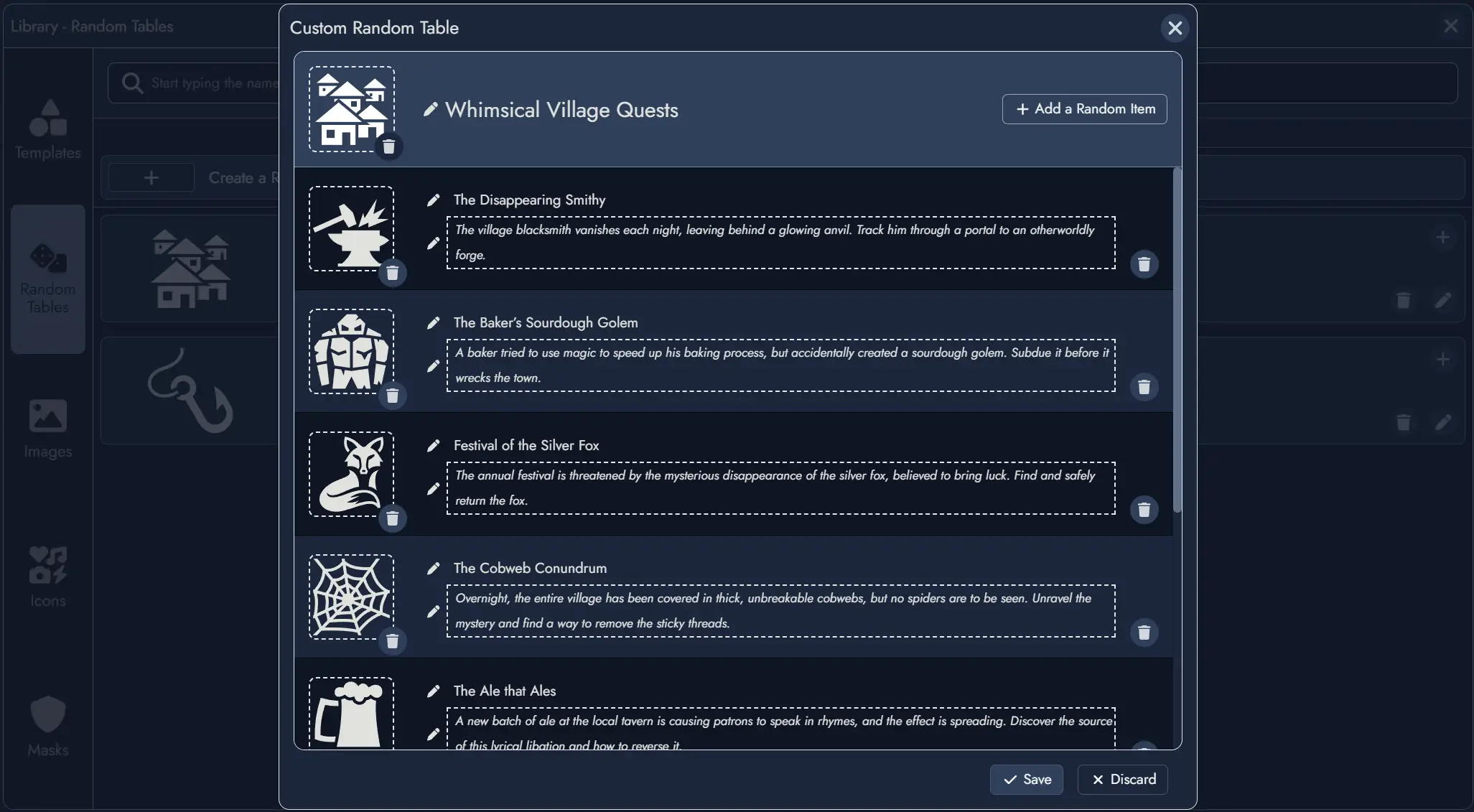
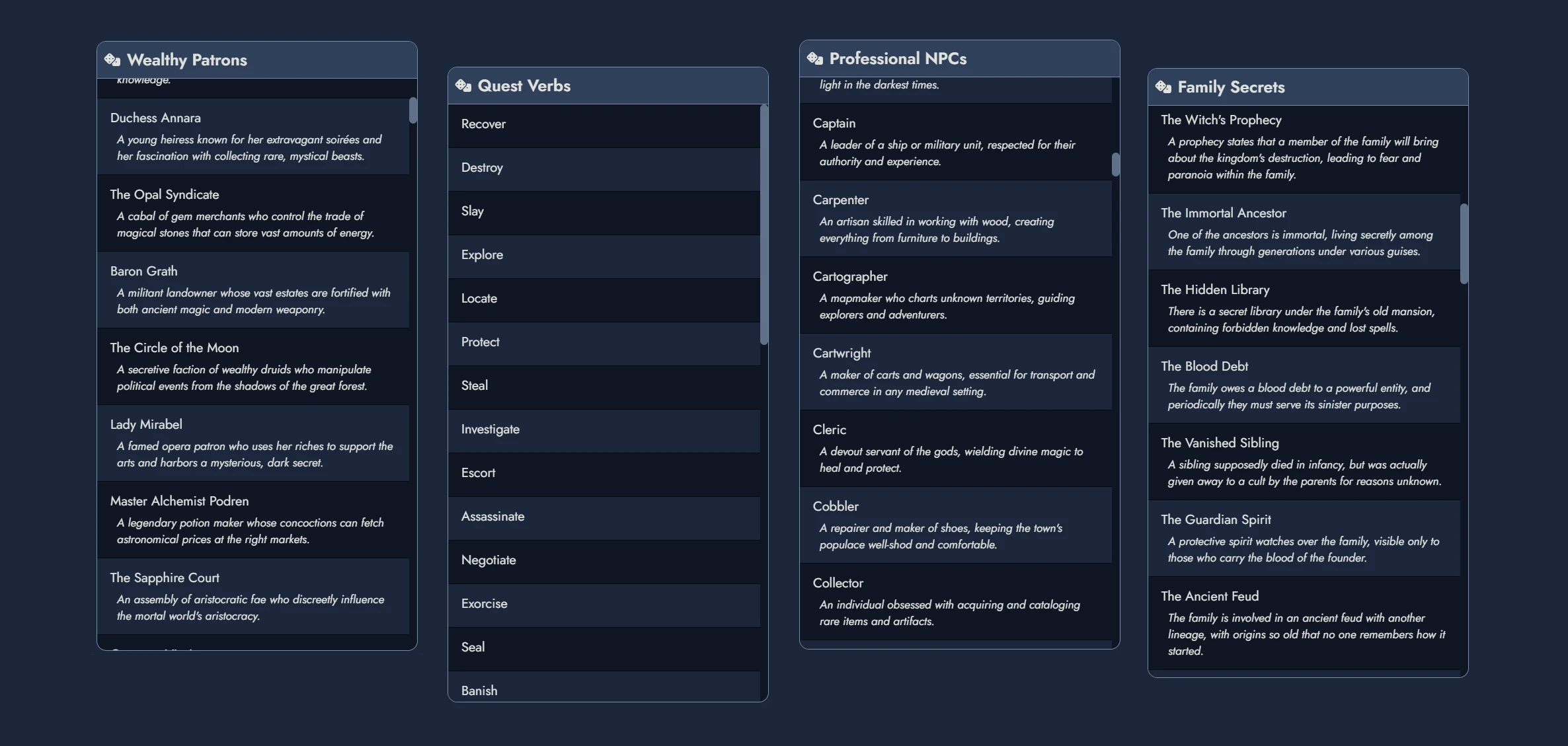
Random Tables let you build your own rollable lists of ideas: names, encounters, rumours, complications, or anything else your game needs. With the Random Table editor, you give a table a name, then add as many themed entries as you like, each with an optional description and visual. If you are not sure where to start, the Library also comes with a collection of ready-made tables on various topics. Use them as examples, as a quick start, or simply as a source of inspiration.
Random Tables are always accessible in the Library, where you can browse their content and make random rolls. Additionally, they can be linked to Nodes, transforming the Node into a Random Node with a “roll” function. You can roll for a new result at any time or manually select one from the table, updating the Node’s content (and visual, if applicable) with the chosen entry.
Using Random Tables
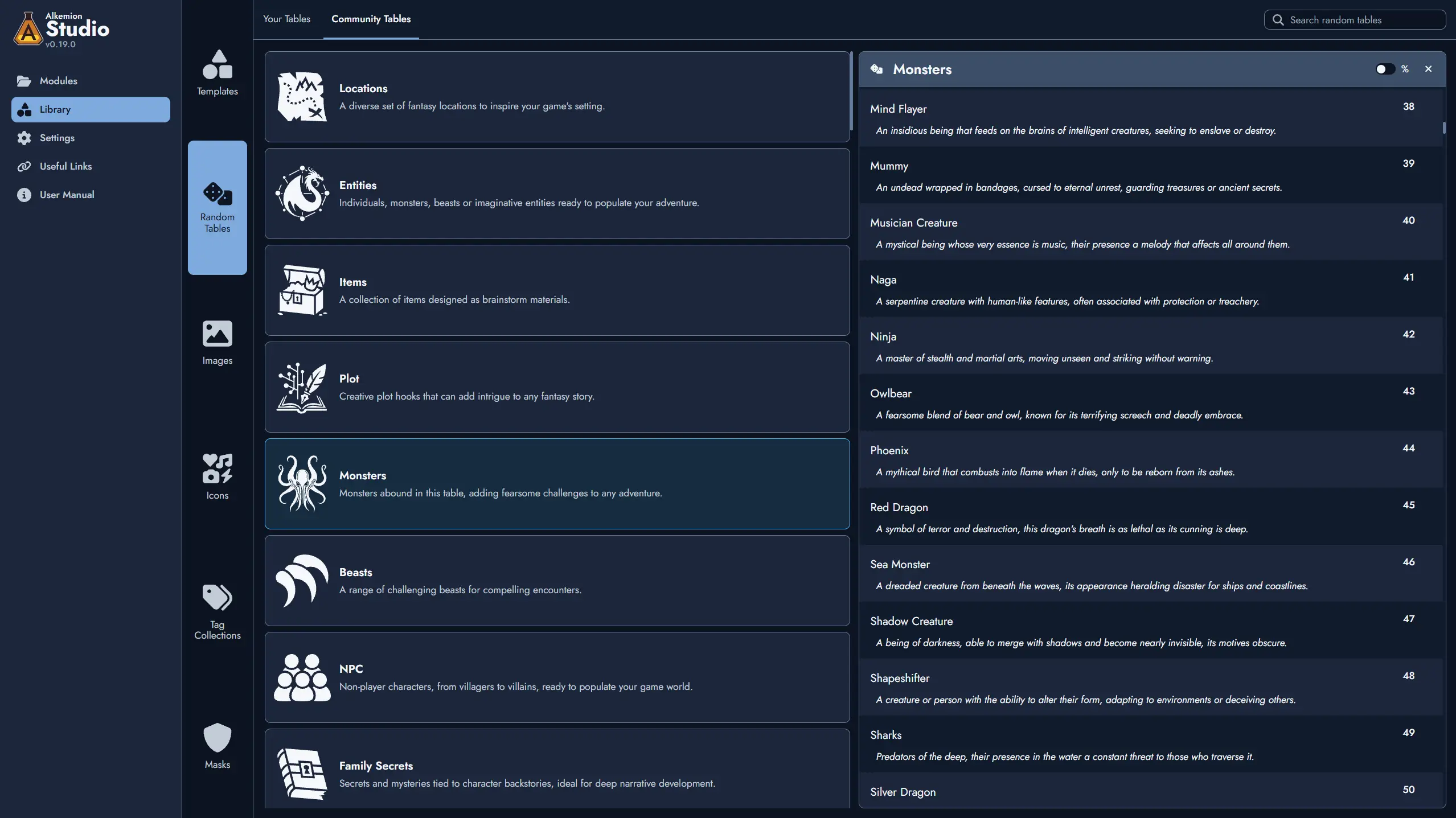
You can find Random Tables in the Library. Clicking on a Random Table opens a detailed panel displaying its contents, along with a “roll” button to select a Random Item from the table.
Selecting a Random Item gives you the option to create a new Node containing the item’s content by clicking the add button. The dialog window also allows you to link this new Node to the selected Random Table, making it a Random Node.
The column on the right shows the roll range of each entry. Hover over a roll range to see the chance of rolling that entry, or turn on the % switch in the table's header to display the odds on every row. Tables that use weights show their odds automatically.
Random Nodes
Random Nodes are Nodes linked to a Random Table. They function like regular Nodes but include an additional “roll” button. Rolling a Random Node replaces its content with a randomly selected item from the linked table.
It’s important to note that rolling a Random Node completely replaces its content with the selected Random Item. If you’ve made changes to the Node’s content, the application will ask for confirmation before rolling, preventing accidental overwrites. Additionally, after rolling, you can undo the action using the undo button or the ctrl + z shortcut.
You can create a Random Node by linking a Node to a Random Table.
This can be done using the Add Random Table from several places in the application:
- In the context menu of any of its Tokens on the Board.
- In the Node’s context menu, available in the Board’s Node Tree or the Editor’s Content Tree.
- In the Random tab of the Node information panel within the Editor.
- In the Node Details floating window available from any of its Tokens on the Board.
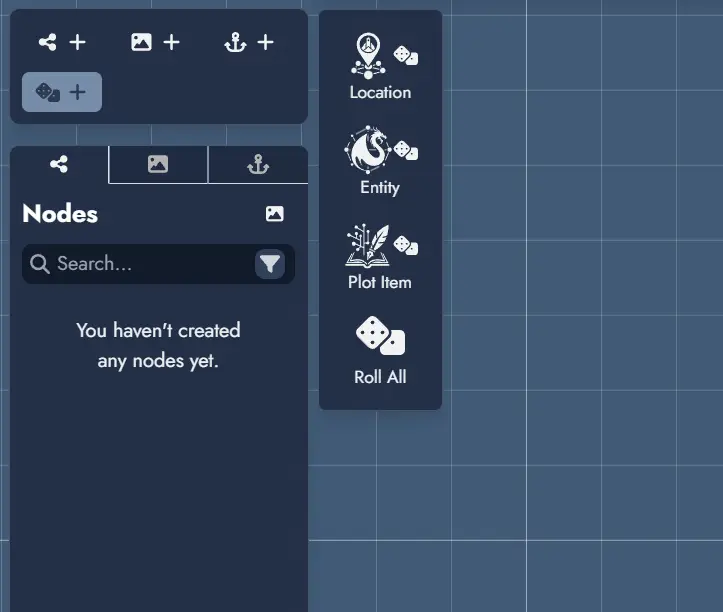
Another easy way to create generic Random Nodes is to use the “Random Nodes” toolbar on the Board. This toolbar includes buttons for creating thematic Random Nodes, each pre-linked to a Random Table with an immediate roll result. Once created, these Random Nodes can still be fully customized.
The Random Nodes toolbar also includes a “Roll All” button, allowing you to roll all Random Nodes on the Board at once.
Two options in the Interface tab of the Module Settings let you choose which Nodes “Roll All” re-rolls: Skip nodes without tokens leaves alone the Nodes that have no Token on the Board, and Skip nodes with only locked tokens leaves alone the Nodes whose Tokens are all locked. With the second option enabled, locking every Token of a Node is a simple way to preserve its current result.
Creating or Editing a Random Table
To create a new Random Table, go to the “Your Tables” tab in the Random Tables section of the Library and click the Create a Random Table button.
This opens the Random Table editor, where you can set the table’s name and optionally select a visual. A valid Random Table requires at least two Random Items, which you can add using the button on the right.
Each Random Item must have a name. You can also add a visual and a description if desired. Descriptions can span several lines: press Shift + Enter to add a line break (or Enter on phones and tablets). Once you’ve finished editing, click Save to create the new Random Table.
The same editor can be used to modify any Random Table you’ve created. Simply locate the table in your Library and click the Edit button.
Please note that the built-in Random Tables provided by Alkemion Studio cannot be edited.